
Sign or edit the documents as a therapist.
You can digitally sign or prepare a document for signature directly from a patient’s profile.
- Navigate to the Patient Profile
Open the profile of the patient whose document you want to sign.
- Locate the Document
Scroll to the Forms section and find the document you wish to edit.

- Open the Document Editor
Click on the Edit Document icon. This will launch the document editor.

- Edit and Add Signature
- Use the editor to make changes to the PDF.
- You can add your signature, insert a signature field for the patient, and include tags as needed.
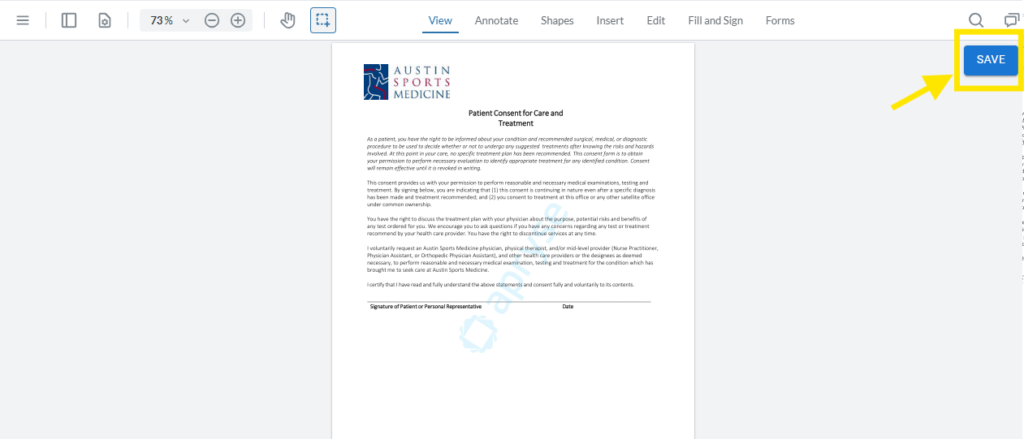
- Save the Changes
When you’re done, click the Save button in the top-right corner.
- View the Edited Document
Return to the Forms section, locate the updated document, and click the View icon.
The edited PDF will open in a new tab for review.

✅ Tip: Use signature fields to allow patients to sign electronically during consultations or remotely.


