
To assign consent forms to a patient, follow these steps:
1. Navigate to the Patient Profile
- Go to the Patient Overview section of the patient you want.
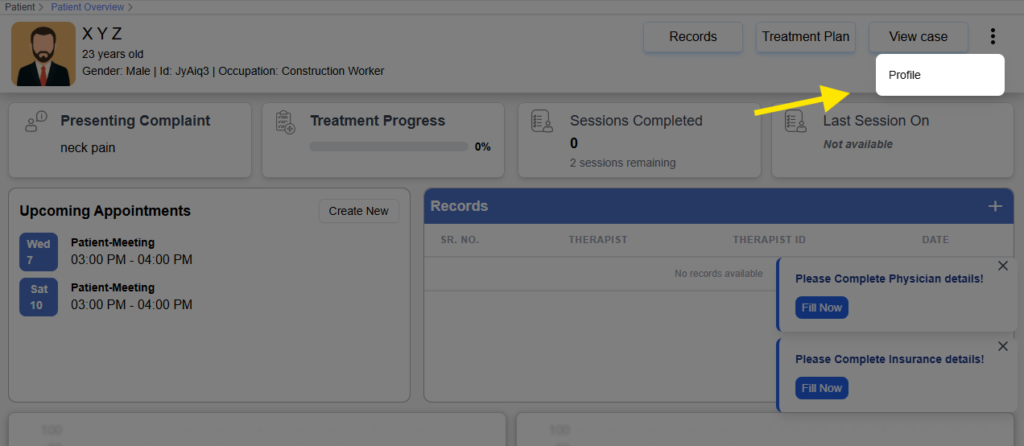
- Click the ellipsis (three dots) in the top-right corner of the screen.
- From the dropdown menu, select Profile to open the patient’s profile page.

Drop down opens
2. Access the Forms Section
- In the patient profile, locate the Forms section.
- Click on the Add Form button next to it.

3. Select and Assign Forms
- You will be redirected to the Forms page.
- Here, you’ll see a list of available form cards with checkboxes.
- Select one or more forms by checking the boxes.
- Click the Assign Forms button to complete the process.
The selected forms will be assigned to the patient and automatically emailed to them. You can view the assigned documents in the same Forms section of the patient’s profile.


