
Once the patient successfully logs into the application, they are redirected to the Dashboard. The Dashboard acts as the central hub where patients can access their Analysis of there treatment, sessions, and other health-related information.
The experience on the dashboard may vary depending on whether the patient has already been added to the system by a therapist or is logging in for the first time.
First-Time Login Setup #
If the patient is logging into the application for the first time and has not been added by a therapist, they will need to complete a few setup steps before fully using the application.
These steps help create the patient’s medical profile and connect them with a therapist.
Step 1 – Complete Profile Details
The first step is to complete the patient profile information.
- Go to Profile icon from Bottom Navbar.
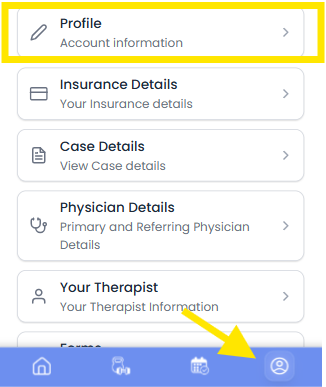
- Open the Profile Details section.
- Enter the required information such as:
- Personal details
- Contact information
- Presenting Complaint
- Additional patient details if required
- Click Save to update the profile.
Completing the profile ensures that the patient’s information is properly recorded in the system.
Step 2 – Add Insurance Details
Patients should provide their insurance information to ensure proper medical documentation and billing.
- Go to Profile.
- Open the Insurance Details section.
- Enter the required information such as:
- Insurance provider
- Policy number
- Additional insurance information
- Click Save.
Step 3 – Add Physician Details
Patients also need to provide information about their physician.
- Navigate to Profile.
- Open the Physician Details section.
- Enter the required physician information.
- Save the details.
This information helps therapists coordinate care with the patient’s physician if required.
Step 4 – Find and Connect with a Therapist
After completing the profile setup, the patient must connect with a therapist.
- Go to Profile icon in bottom navbar.
- Go to the Your Therapist section.
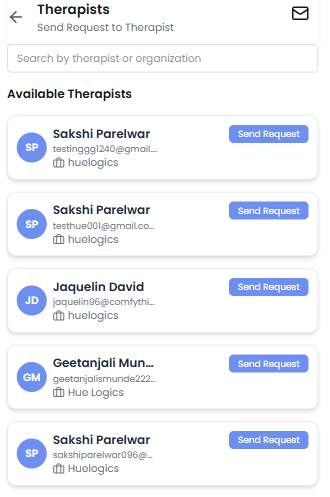
- Use the Search Therapist option.
- Browse or search for the therapist from the available list.
- Select the desired therapist.
- Click Send Request.
Once the therapist accepts the request, the patient will be connected to the therapist.
Treatment Request
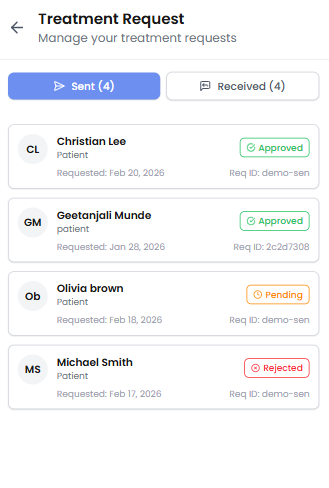
Patient can view treatment request in envelop icon of therapist list section
sent and received request are two types of request given into the app
Case Details #
Once the therapist accepts the request, the patient will be connected to the therapist and case details will be filled.
case details will be visible to patient into profile section of app and patient can add documents into it.
Application Setup Complete
After the therapist connection is established, the application setup is complete.
The patient will now be able to access:
- Therapy sessions
- Treatment plans
- Reports
- Forms
- Communication with the therapist


