
The Meetings section allows patients to join therapy sessions, view past meetings, and schedule upcoming appointments with their therapist. This section helps patients manage all their therapy sessions in one place.
The Meetings screen is divided into three tabs:
- Meetings
- Recent
- Schedule
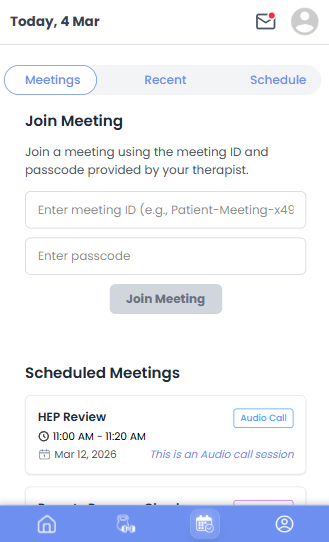
Join a Meeting #
Patients can directly join a therapy session using the Meeting ID and Passcode provided by their therapist.
Steps to Join a Meeting
- Open the Meetings tab.
- Enter the Meeting ID provided by the therapist.
- Enter the Passcode.
- Click Join Meeting.
Once the details are verified, the patient will be connected to the therapy session.
Scheduled Meetings #
Below the Join Meeting section, patients can view Scheduled Meetings.
This section displays upcoming appointments that have already been scheduled with the therapist.
Information Displayed
Each meeting card shows:
- Meeting Title
- Session Time
- Session Date
- Session Type (Audio or Video call or In-person)
Patients can use this section to keep track of their upcoming therapy sessions.
Recent Meetings #
The Recent tab displays a list of meetings that have already taken place.
This includes:
- Recently completed therapy sessions
- Past meetings with the therapist
Each entry typically shows:
- Meeting title
- Date of the session
- Time of the session
- Type of meeting
This helps patients easily review their session history.
Calendar #
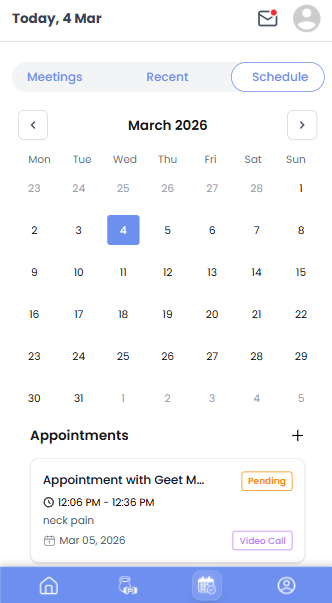
The Schedule tab provides a calendar view to help patients track their therapy appointments.
Calendar Features
- The calendar highlights dates that have scheduled meetings.
- Patients can select a specific date to view appointments scheduled for that day.
Upcoming Appointments
Below the calendar, the application displays a list of upcoming appointments.
Each appointment entry includes:
- Meeting title
- Scheduled date
- Scheduled time
- Meeting type
This allows patients to quickly see their future therapy sessions.
Request a New Meeting
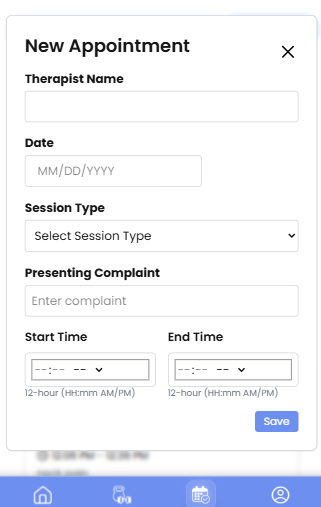
Patients can also request a new meeting with their therapist.
To do this:
- Click the “+” (Plus) icon available in the Schedule section.
- A request popup window will open.
- Enter the required details such as:
- Preferred date, type of meet
- Preferred time
- Submit the request.
Once submitted, the therapist will receive the meeting request and can approve or schedule the session accordingly.


